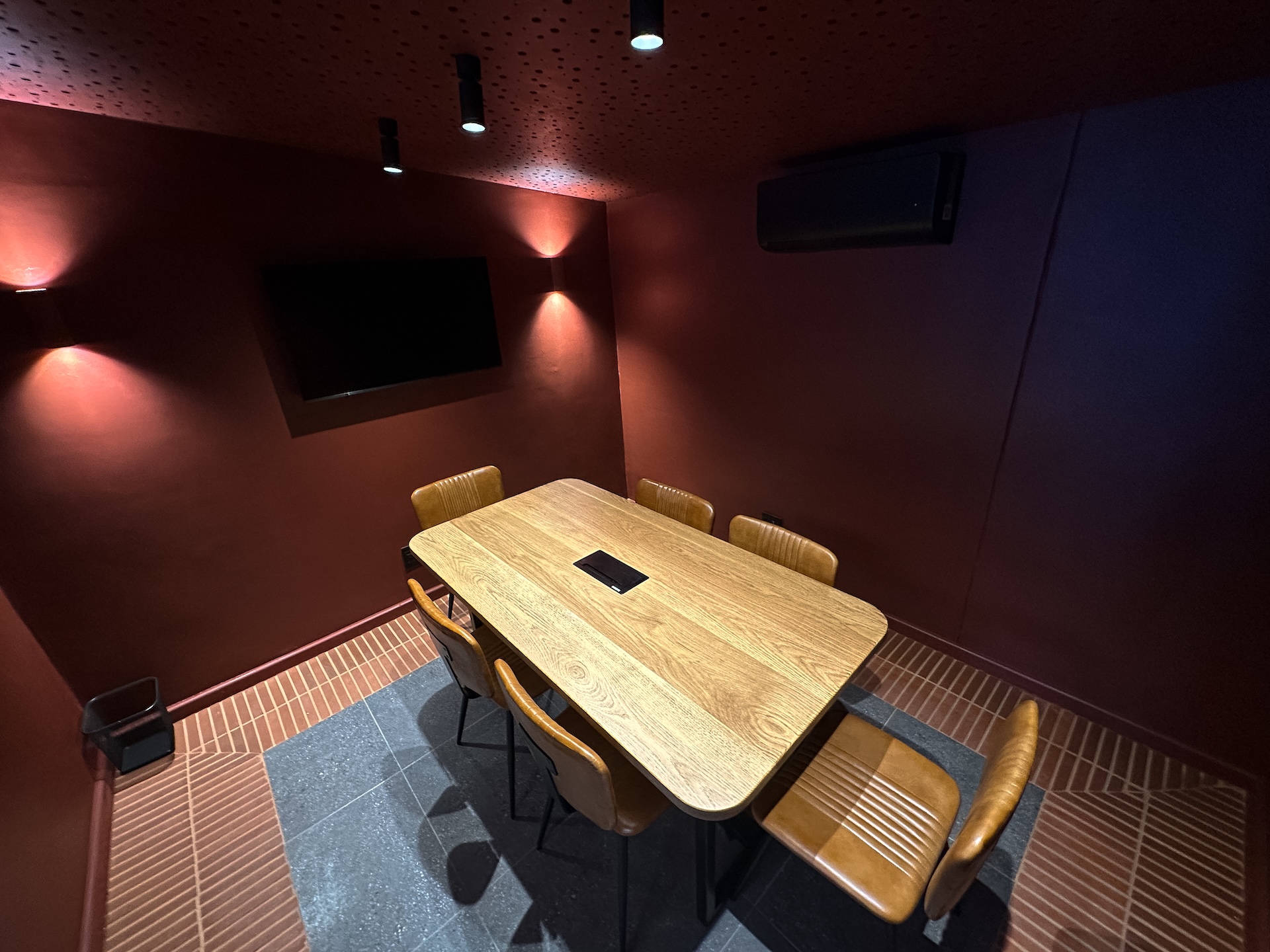
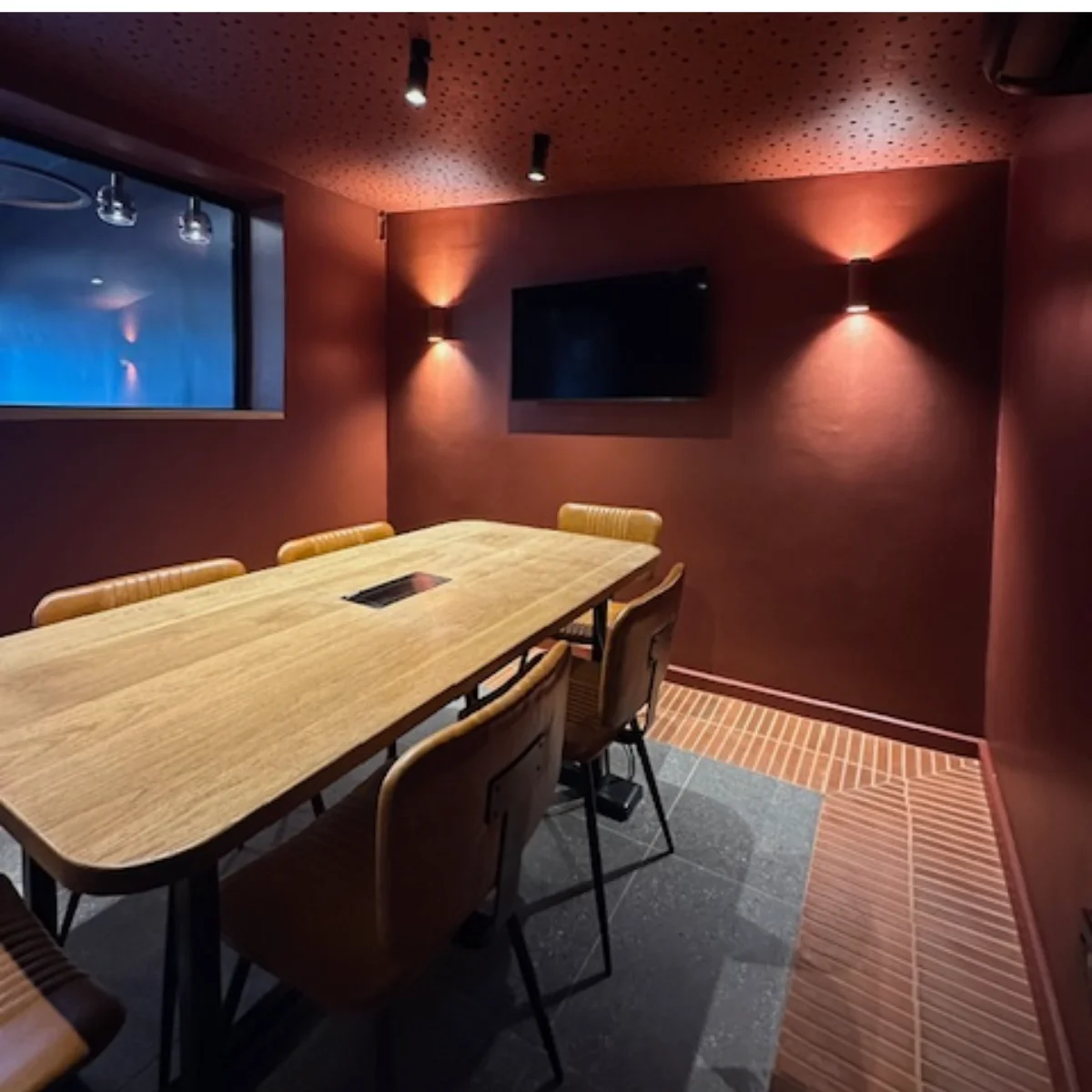
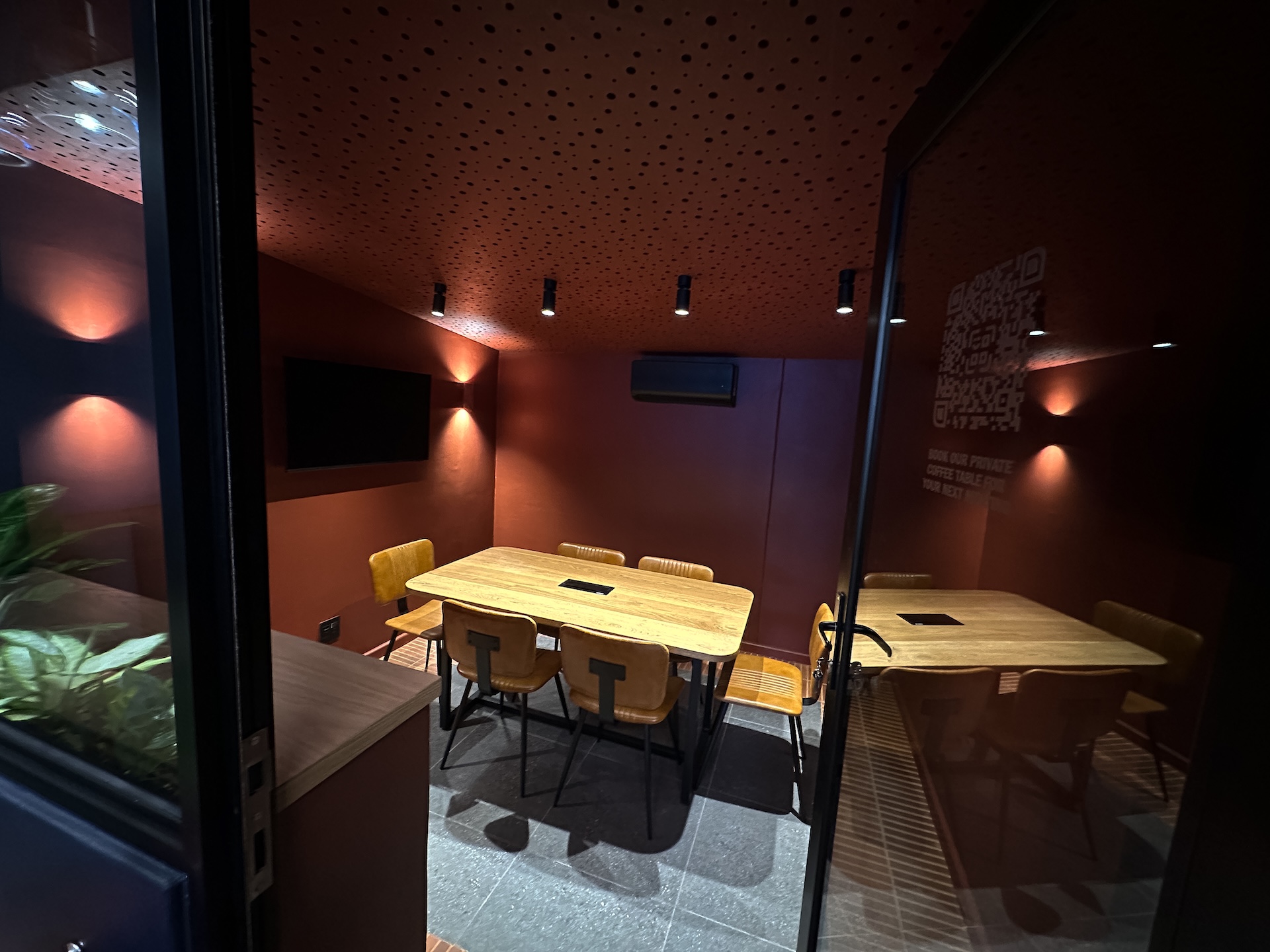
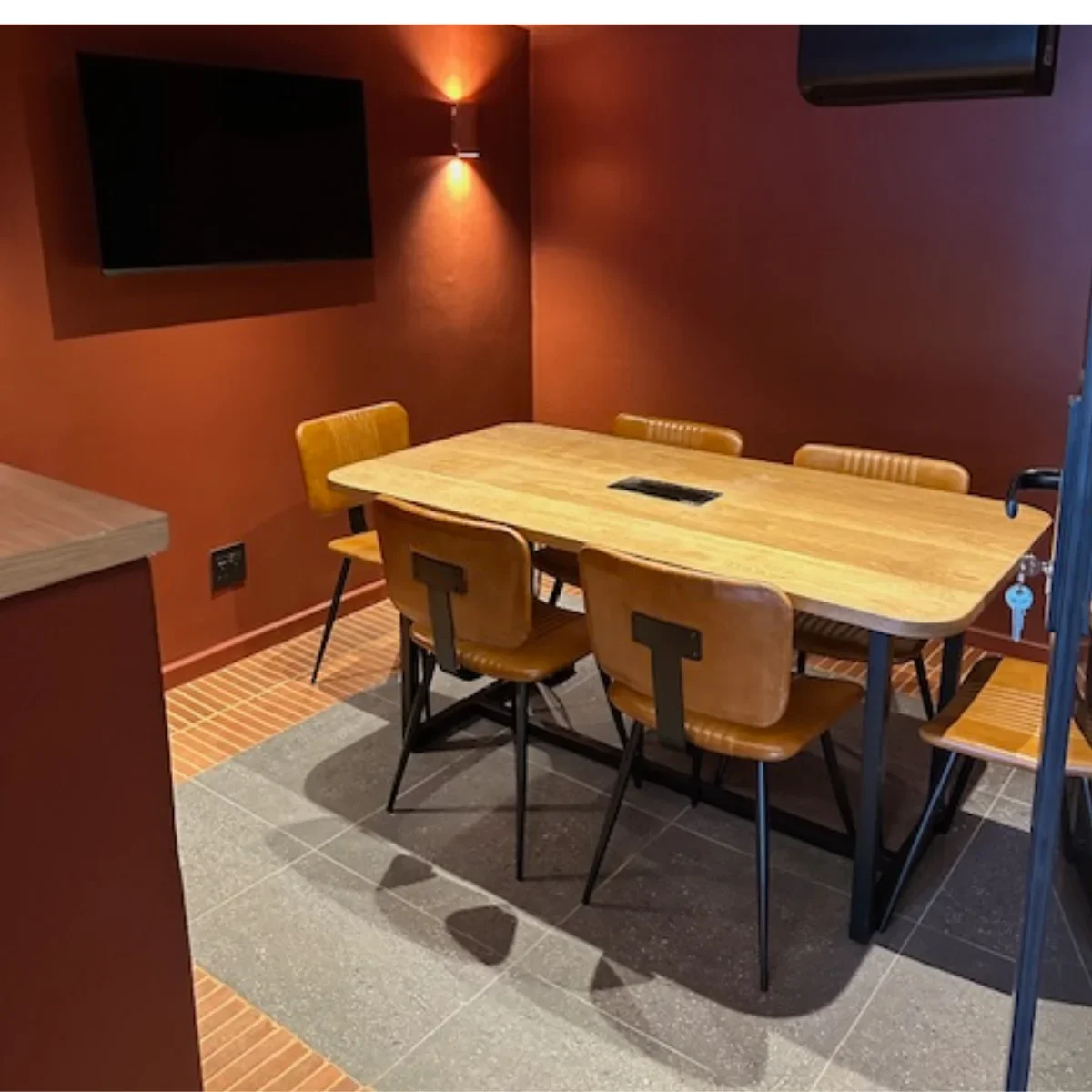
Workspaces matching "Gqeberha"
Results appear below as you type. Use the arrow keys to review them and Enter to open one.
See spaces near you?
We'll show the closest venues and rooms to where you are.
How we use your locationOn a computer
- In the address bar, click the sliders icon just before airoffices.co.za.
- Turn Location on.
- No sliders icon? Click ⋮ (top right), then Settings › Privacy and security › Site settings › Location, and move airoffices.co.za from Not allowed to Allowed.
- Press I've turned it on below.
On an Android phone
- Tap ⋮ (top right), then Settings › Site settings › Location.
- Under Blocked, tap airoffices.co.za and choose Allow.
- Check the phone's own Location is on (swipe down from the top of the screen).
- Press I've turned it on below.
On an iPhone or iPad
- Open the Settings app and tap Chrome.
- Tap Location and choose While Using the App.
- Come back to Chrome and press I've turned it on below.
On a Mac
- In the menu bar, choose Safari › Settings for airoffices.co.za.
- Set Location to Allow.
- Still off? Open System Settings › Privacy & Security › Location Services and turn on Safari.
- Press I've turned it on below.
On an iPhone or iPad
- Tap aA (or the page icon) in the address bar, then Website Settings.
- Set Location to Allow.
- Still off? Open the Settings app › Privacy & Security › Location Services: turn it on, then set Safari Websites to While Using the App.
- Press I've turned it on below.
On a computer
- Click the padlock to the left of the web address.
- Choose Permissions for this site and set Location to Allow.
- Press I've turned it on below.
On an Android phone
- Tap ⋯ (bottom), then Settings › Privacy and security › Site permissions › Location.
- Find airoffices.co.za and choose Allow.
- Press I've turned it on below.
On an iPhone or iPad
- Open the Settings app and tap Edge.
- Tap Location and choose While Using the App.
- Come back to Edge and press I've turned it on below.
On a computer
- Click the crossed-out location icon to the left of the web address.
- Click the × next to Blocked to clear it.
- Press I've turned it on below and choose Allow when Firefox asks.
On an Android phone
- Tap ⋮, then Settings › Site permissions › Exceptions.
- Tap airoffices.co.za and set Location to Allowed.
- Press I've turned it on below.
On an iPhone or iPad
- Open the Settings app and tap Firefox.
- Tap Location and choose While Using the App.
- Come back to Firefox and press I've turned it on below.
On a Samsung phone
- Tap ≡ (bottom right), then Settings › Sites and downloads › Site permissions › Location.
- Tap airoffices.co.za and choose Allow.
- Check the phone's own Location is on (swipe down from the top of the screen).
- Press I've turned it on below.
Results for “Gqeberha”
1 location found
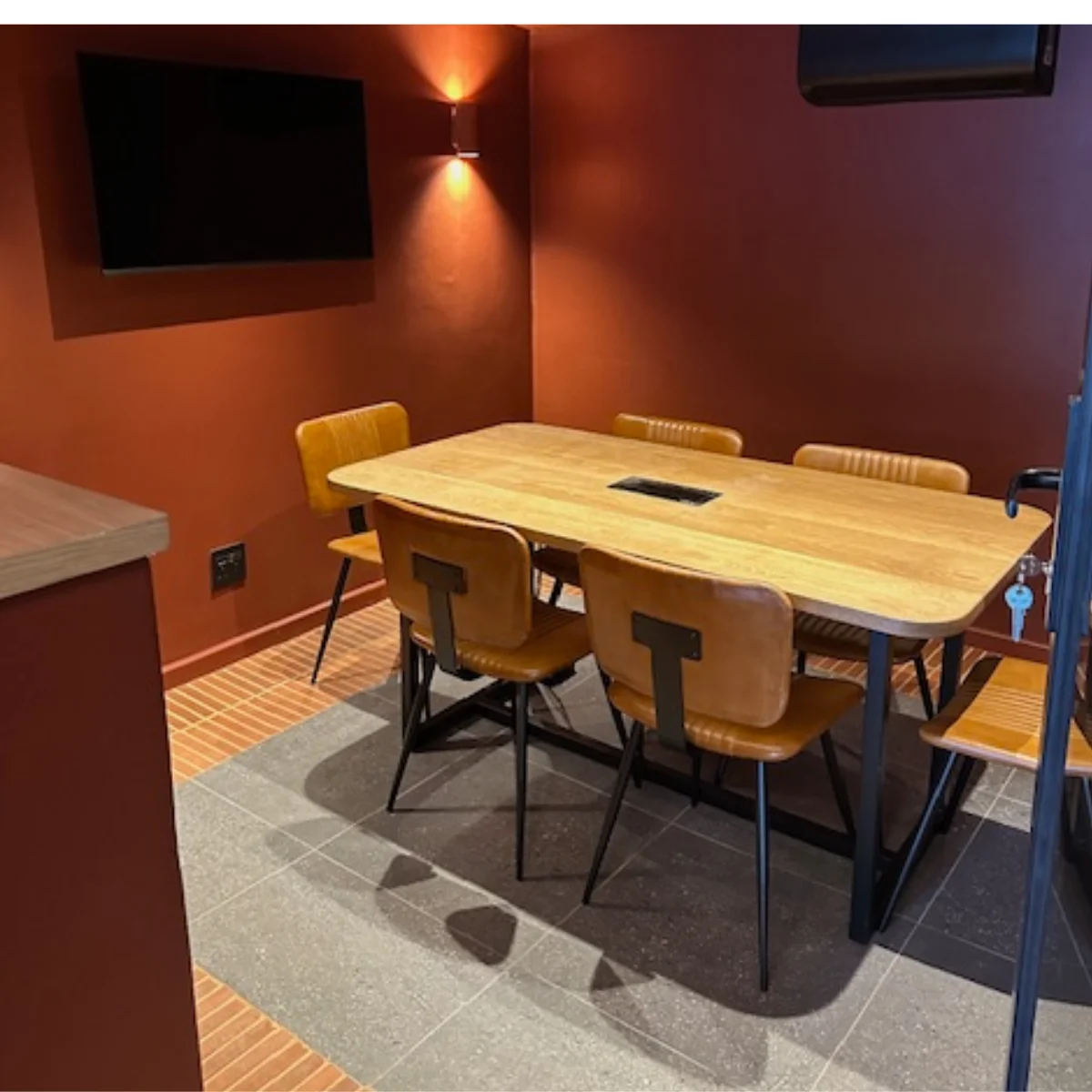

Matching Workspaces
Workspaces at the locations you searched